Learning Hub · Beginner · 10 minutes
How to Install WordPress
A working WordPress site on your domain in ten minutes — a practical, no-jargon walkthrough with the classic mistake flagged before you make it.
The short answer
In one line: a working WordPress site on your domain in ten minutes — a beginner-level job taking 10 minutes.
The walkthrough below covers each step, the mistake most people make, and the shortcut worth knowing. On HostingAlly plans, several of the steps are handled for you — we note where.
Written by the HostingAlly team · Last revised 27 July 2026
Beginner
Skill level
5
Steps to done
Free
Support included
Tested
On our platform
This guide assumes no prior expertise — just a hosting account, a browser, and 10 minutes of attention. Every instruction works on our platform exactly as written, and translates to any standard cPanel host.
Rule of the road: read the gotcha section before you begin, not after — it's harvested from the support tickets of people who didn't.
The route map
Start to finish, you'll open softaculous in cpanel, choose the domain and path, set real credentials, complete and log in and do the first-five settings.
Each stage is a few minutes of focused clicking — the elapsed time mostly depends on how familiar the control panel already feels. The detailed steps are listed further down this page; skim the whole route once before starting.
The mistake almost everyone makes
Installing into a subdirectory accidentally — the site lands at /wp and the homepage 404s, confusing every beginner who leaves the directory field's default in place.
It's worth internalising because it's not a rare edge case — it's the single most common way this task generates a support ticket. Knowing it in advance converts the whole job from risky to routine.
The tip we give everyone
Enable the installer's auto-update and auto-backup options during install — two checkboxes that quietly prevent the most common WordPress disasters.
Small habits like this are the real difference between people who find hosting easy and people who find it stressful — the tools are identical; the workflow isn't.
How HostingAlly makes this easier
Several steps in this guide exist because hosting historically made you do them — on our plans, SSL issues itself, backups run daily without being asked, and one-click installers replace manual setup entirely. What remains is the genuinely-yours part of the task.
Stuck mid-task at an odd hour? That's what 24/7 human support is for — describe where you are in this guide and we'll take it from there.
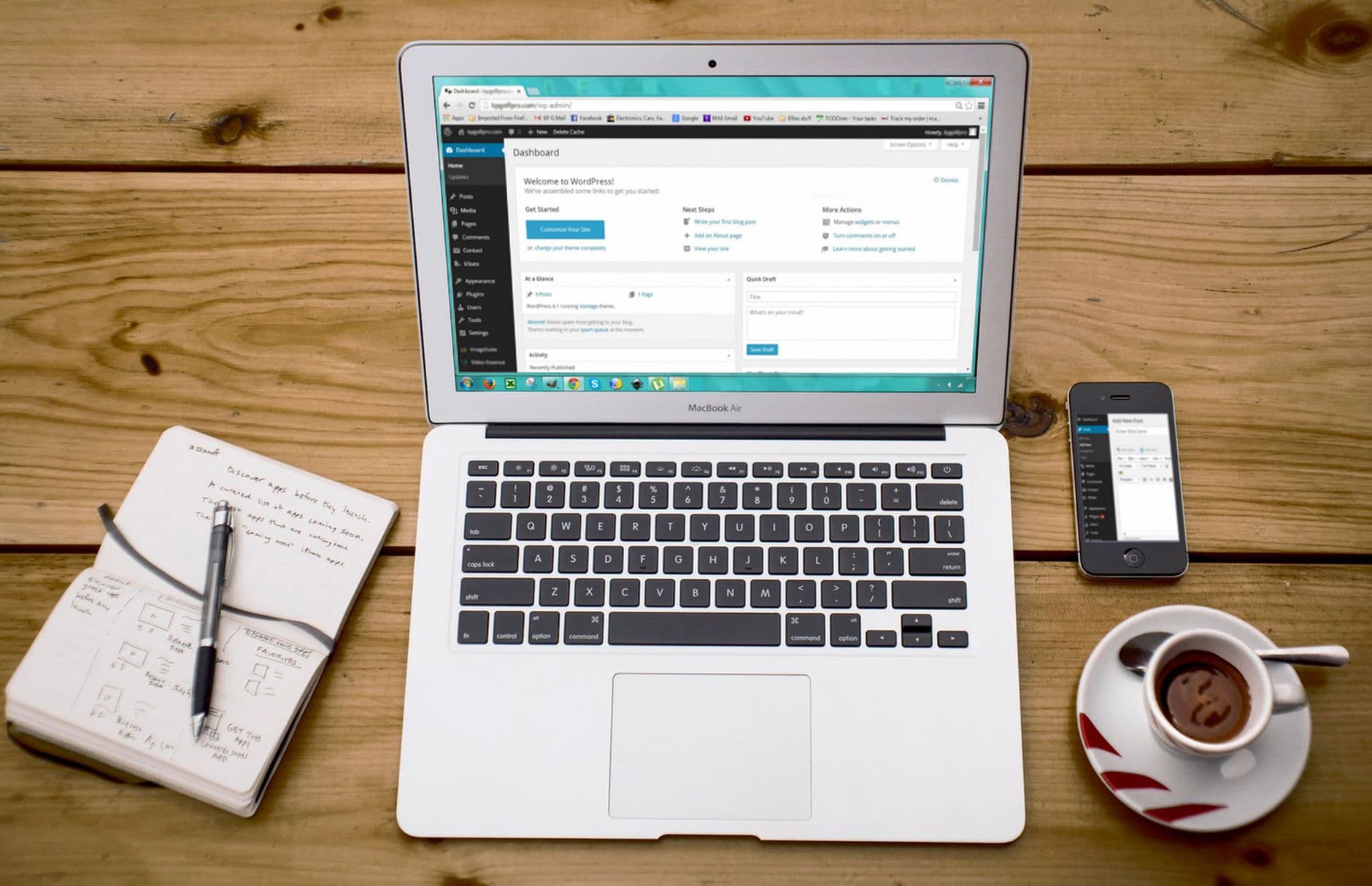
The platform this guide assumes
Every walkthrough in our Learning Hub is tested on the platform we actually run — cPanel, LiteSpeed, NVMe, one-click installs — so instructions match your screen instead of gesturing at it.
Our team migrates existing sites free of charge, typically within 24 hours and with zero downtime.
- Step-by-step, tested as written
- The gotcha flagged before you hit it
- Automation covers the boring steps
- 24/7 support if you get stuck
Why HostingAlly
Every plan includes this, whatever you pay
The undo is always named
Where a step could bite, the guide says so and gives the reversal.
Scoped honestly
A working WordPress site on your domain in ten minutes is a beginner-level task — this guide budgets 10 minutes and says which steps the platform absorbs.
5 steps, no filler
Each stage is a few minutes of focused clicking, with the fiddly parts marked as fiddly.
Help on standby
Stuck at step three at midnight? Support answers around the clock, mid-guide included.
Automation where it belongs
SSL, backups and installs run themselves here — the guide covers only what's genuinely yours to do.
Works as written
Every step tested on our own platform — no 'your host may vary' hand-waving.
Getting Started
How to get going
- 1
Open Softaculous in cPanel
The installer handles database creation, file placement and configuration in one flow — the manual '5-minute install' is now the slow path.
- 2
Choose the domain and path
Install to the domain root (leave the directory field empty) unless you deliberately want yourdomain.com/blog as the site address.
- 3
Set real credentials
Pick a unique admin username (never 'admin') and a generated password — this login is the front door bots will hammer forever.
- 4
Complete and log in
The installer links you to yourdomain.com/wp-admin — bookmark it; that's mission control from here on.
- 5
Do the first-five settings
Set timezone, permalink structure (Post name), delete the sample content, and confirm the site title — five minutes that every future task builds on.
Included
What's covered on our plans
- 24/7 support from real people
- Free domain for the first year on annual plans
- One-click installer for WordPress and 400+ apps
- Per-site PHP version selection
- Free WebP image optimisation built in
- Softaculous one-click app installer
- WordPress Toolkit with automatic updates
- Renewal prices that match signup prices
- Spam and virus filtering on every mailbox
- Free website migration handled by our team
FAQ
Your questions, answered
Should I install WordPress manually instead?
There's no advantage anymore — the installer performs the identical official install with fewer error opportunities. Manual installs remain useful only for unusual layouts or learning purposes.
What are the first plugins a new install needs?
Fewer than you think — LiteSpeed Cache (bundled with our WordPress hosting), an SEO plugin, and a forms plugin cover most sites. Every additional plugin is maintenance surface; add on need, not on listicles.
Is SSL really included at no cost?
On every plan, with no exceptions — certificates are issued automatically when your domain points to us and renew themselves before expiry. The encryption is identical to paid DV certificates; paid tiers exist only for wildcard convenience or organisation-level validation.
Do you monitor uptime, and what do you commit to?
We commit to 99.9% uptime and monitor continuously — not a marketing number but an operational one, with alerting that usually has us fixing issues before customers notice them.
Do prices go up at renewal?
No — the price you sign up at is the price you renew at. We don't run teaser-rate economics, so there's no year-two ambush to plan around, and your bookkeeping can rely on the number staying put.
What happens if I outgrow my plan?
You upgrade in place — plan changes apply from your client area without migrations or downtime, and our range runs from small shared plans through VPS to dedicated servers, so growth is an account change rather than a new-host project.
How do I pay, and is billing recurring?
Plans are billed by credit or debit card through our secure checkout, with the renewal price matching the signup price. You can see every invoice in the client area, and cancelling auto-renewal is a setting, not a phone call.
Planning to switch hosts? Grab the checklist here.
The steps that keep a site migration dull rather than dramatic: what to back up first, how to shift email across without losing a single message, when to touch DNS, and the two mistakes behind nearly every hour of downtime we come across.
Put an ally behind your website.
Free SSL, free migration, honest renewals and 24/7 human support. That's the whole pitch.
View Secure Hosting plans